

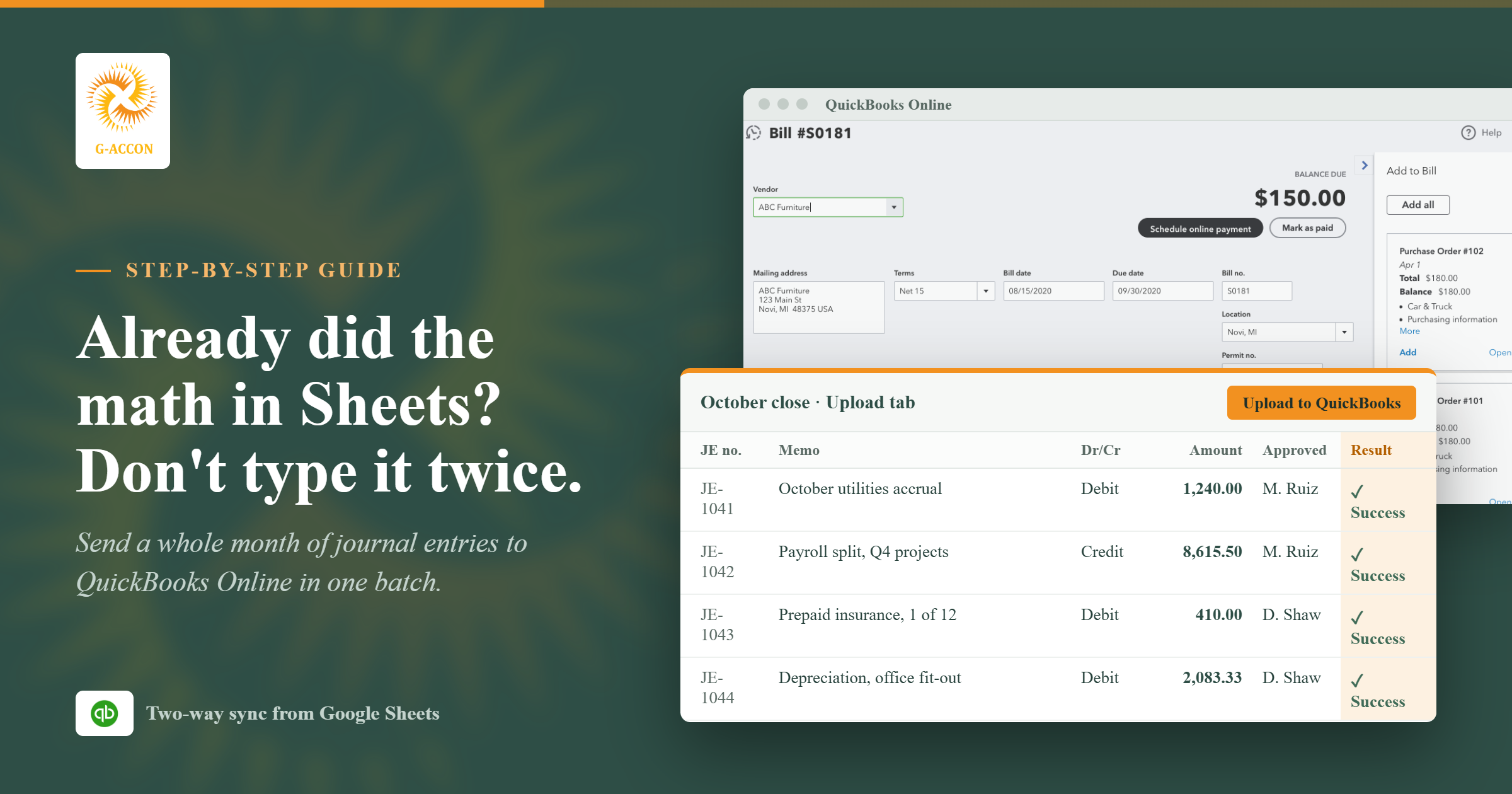
Want to import journal entries into QuickBooks without retyping a single line? At month-end, your accruals and payroll splits are usually worked out in a spreadsheet already, yet you've still got to type every number into QuickBooks Online by hand.
G-Accon's two-way sync skips that step by sending the entries you build in Google Sheets straight into QuickBooks as one batch, so you never punch in the same figures twice.
The Short Answer
- The workflow: keep doing your entries in Google Sheets like you always have, but instead of retyping them, send the lot to QuickBooks Online in one shot.
- What G-Accon does: G-Accon is a Sheets add-on. You show it which column goes with which QuickBooks field once, save that as a template, and from then on it'll create, update, or delete entries when you hit the button (or when your schedule says so).
- What most guides don't mention: QuickBooks doesn't know who you are when an app does the posting. The audit log just says "System Administration," so it's on you to note in the sheet who prepared each entry and who signed off.
Why Typing Journal Entries One at a Time Slows You Down
Typing in one journal entry isn't a big deal. You pick an account for each line, drop the amount under Debits or Credits and keep going until both columns match, since QuickBooks won't save it otherwise.
Now picture doing that for ten or twenty clients at month-end, when you already did all the math in a spreadsheet last week. That's where the hours go.
When APQC looked at roughly 2,300 organizations, the typical one needed 6.4 calendar days to close the month, the fastest quarter got it done in 4.8 days or less and the slowest quarter needed 10 days or more (APQC data via CFO.com).
APQC also found that companies using one standard chart of accounts closed about two days faster, which tells you the fast teams don't have faster fingers, they've just built a setup they can repeat. A reusable template for bulk journal entries is exactly that kind of setup.
4.8 days
Fastest quarter of companies
6.4 days
Typical company
10+ days
Slowest quarter of companies
What You Need Before You Start
- A QuickBooks Online company you can log in to. You'll need to be signed in to the company you're uploading to, and the data travels through the official QuickBooks Online API that Intuit opens to approved apps.
- The G-Accon for QuickBooks add-on. Install it from the Google Workspace Marketplace, and if you get stuck, the G-Accon QuickBooks integration page has the setup steps.
- A G-Accon plan. Every plan includes uploads from Sheets, from Business (up to 3 companies) to Enterprise (up to 250), and the 14-day free trial doesn't ask for a credit card.
- A chart of accounts that's in order. An upload can't create a missing account or vendor for you, so make sure everything your entries mention already exists in QuickBooks and isn't marked inactive.
- Someone to prepare and someone to approve. Even if it's just you and a partner, figure out who does which job now, because you'll give each of them a column later on.
How to Import Journal Entries Into QuickBooks From Google Sheets
You only set this up once, and after that, every time you import journal entries into QuickBooks, a normal month comes down to pasting in new numbers and pressing upload. G-Accon's journal entry documentation has screenshots of every screen.
Step 1: Pull an existing journal entry into your sheet
It sounds backwards, but before you import journal entries into QuickBooks, your first move is pulling data out, not pushing it in. Open Extensions, then G-Accon for QuickBooks, then Get Accounting Data/Reports, and choose Journal Entries along with the fields you want. What comes back is the exact column layout QuickBooks expects, so there's no guessing. I'd pick an old entry with a few lines on it, since a real example shows how multi-line entries are laid out better than any explanation can.
Step 2: Add your new entries under the same headers
Type or paste your new lines under those headers. Lots of firms do their math on a separate working tab and link the upload tab to it, so formula changes flow straight through and nobody copies anything by hand.
Step 3: Create the upload template
Go to Extensions, then G-Accon for QuickBooks, then Upload Accounting Data to QuickBooks, and choose the Journal Entries table. The operation dropdown has three options: Insert for brand-new entries, Update for ones QuickBooks already has and Delete to remove them. Got a table that doesn't begin in A1? Tell G-Accon which cell holds the first header, and pick a spot for the result columns while you're at it.
Step 4: Choose which rows to send
Row Selection Mode is how you tell G-Accon which rows to send. You can go as wide as every row or as narrow as a few row numbers, but the one I'd lean on at month-end is "Only New Rows," since it ignores whatever you posted last time.
Step 5: Map your columns to QuickBooks fields
This is the drag-and-drop part. Grab each QuickBooks field and drop it on the column that holds that data, and your column names can stay whatever you like because custom mappings are allowed. It also shows each field's data type and allowed values, which helps because a few fixed values use QuickBooks' internal format. Skip a required field by accident and G-Accon will name the one it's missing.
Step 6: Upload and check the results
Clicking Execute & Save posts the entries and saves the template, so setup is finished the moment your first batch goes through. G-Accon then writes the outcome next to each row, with the new QuickBooks Id, Success and Created flags, any Error message and a Timestamp. Next month, Upload to QuickBooks based on Templates for Current Sheet runs it all in one click, or you can set up a workflow that runs on a schedule and pings your team when it's done.
How to Set Up Your Sheet So Entries Post Cleanly
QuickBooks applies the same rules to every journal entry, typed or uploaded, so building them into your sheet means fewer rejected rows when you import journal entries into QuickBooks in bulk.
- Date and journal number: give every entry both so it's easy to track down later.
- Account: no line goes through without one. Don't be surprised if the template has a single amount column plus a Debit/Credit column instead of two money columns, because that's how QuickBooks stores lines behind the scenes, and the entry you pulled in Step 1 shows you the pattern.
- Balanced debits and credits: every entry needs at least one of each, and a single cent of difference between the two sides is enough for QuickBooks to bounce it.
- Memo or description: it's optional in QuickBooks, but I'd make it mandatory in your sheet for reasons you'll see in a minute.
- Class and location: skip these if you like, and know they'll be ignored unless tracking for them is switched on in your QuickBooks settings.
- A name on A/R and A/P lines: QuickBooks wants a customer named on any Accounts Receivable line and a vendor on any Accounts Payable line, or the row fails.
One habit that saves a lot of grief is a check column. Have it take credits away from debits for each journal number and flag anything that doesn't land on zero, and you'll catch most mistakes before QuickBooks ever sees them.
Make Every Bulk Entry Easy to Audit
When an app posts an entry for you, QuickBooks doesn't record your name next to it, so your Google Sheet has to become the record of who did what.
Intuit's help page on the audit log explains that data added or changed by a connected app shows up as a System Administration event, and those events stay in the log for two years (Intuit). That leaves an auditor looking at a batch of month-end entries with no idea who built or checked them.
Why does that matter? Auditors tend to start their testing with journal entries, and the Public Company Accounting Oversight Board (PCAOB) said as much in a January 2025 staff paper, where it noted its inspectors keep finding weak journal entry testing and listed the red flags auditors should look for (PCAOB Audit Focus: Journal Entries).
The PCAOB only oversees audits of public companies, but if a lender, investor or outside accountant ever reviews your books, its list makes a pretty good checklist.
Here's each red flag paired with something you can build into your upload sheet.
| Warning sign auditors look for | What to build into your sheet |
|---|---|
| Entries at period end or after closing with little or no description | Make the memo column required and explain the entry in everyday words, like "October utilities accrual, bill due November 10" |
| Entries made by people who don't usually make entries | Give every row a Prepared By and an Approved By name, because QuickBooks will only show System Administration |
| Round numbers or the same ending number over and over | Keep the working tab that shows how you got each estimate |
| Entries to unusual or rarely used accounts | Add a note or a link to the backup (an invoice, a payroll report, the asset schedule) in a Support column |
| Entries without account numbers | Pick accounts from the list you exported in Step 1 instead of typing names from memory |
Splitting the work between two people is the last piece of an audit-ready way to import journal entries into QuickBooks. Your preparer builds entries on the working tab, while the reviewer looks them over, adds their name under Approved By and presses upload.
To stop anyone else from fiddling with the upload tab, go to Data, then Protect sheets and ranges, and limit who can edit it (Google Docs Editors Help). That way nothing reaches QuickBooks without the reviewer seeing it first.
Those QuickBooks Ids that G-Accon writes next to each row turn out to be really handy here. If an auditor spots a System Administration entry and asks where it came from, you search your sheet for that Id, and there's the preparer, the approver, the reason and the backup, all in one row.
Fixing the Errors You're Most Likely to Hit
A failed row never fails quietly, because G-Accon fills in its Error column with the reason. Here are the messages that come up most often when you import journal entries into QuickBooks.
"Amount on debits not equal to credits"
This means the entry doesn't balance. Look for two things. Formulas sometimes leave tiny fractions of a cent behind, and ROUND(amount, 2) takes care of that, while the other usual suspect is a line tagged with the wrong journal number, which your check column will point out.
"Invalid Reference Id"
This usually means someone deleted or deactivated an account, class, customer or vendor that your line still refers to. Turn it back on, or point the line at a record that's still in use.
"When you use Accounts Receivable, you must choose a customer in the Name field"
This means an A/R line has no customer, and A/P lines follow the same rule with vendors.
"Account Period Closed"
This means the entry date falls on or before the QuickBooks closing date. Either change the date or ask an admin to move the closing date under Settings, Account and Settings, Advanced, and write the reason in your memo column.
A missing required field
This means a column is blank or unmapped, which you can fix under Update/Modify/Delete Templates for Current Sheet.
A run that stops halfway with no error
This is nearly always Google's time limit. G-Accon's Automatic Refresh Limits help page says one Google script run can't go past 6 minutes, so split huge batches into smaller ranges.
Once you've fixed the failed rows, select just those and rerun the upload with Currently Selected Rows, so nothing gets posted twice.
How This Compares to QuickBooks' Own CSV Import
QuickBooks Online has its own journal entry import under Settings, Import Data, Journal Entries, and when Intuit launched it in April 2024, it said CSV files could have up to 1,000 lines. It works, but there's a fair bit of fiddling every time you import journal entries into QuickBooks that way.
You download your sheet as a CSV, switch off account numbers before you start, write sub-accounts as "Parent account: Sub account" to avoid a "Line Account Invalid" error and map your columns all over again.
After that, the file has no link back to your sheet. Some people don't see the Journal Entries option at all, because Intuit hasn't rolled it out everywhere, so check with them if it's missing.
With G-Accon, you can import journal entries into QuickBooks with no export step and no remapping. It can also change or delete entries it posted earlier, and because the results land back in your sheet, every QuickBooks record stays linked to the people who prepared and approved it.
FAQs
Can you import journal entries into QuickBooks from Google Sheets?
Yes. QuickBooks' own importer wants a CSV file, but G-Accon skips that step and uploads right from your sheet using a template you can use again next month.
What fields are required for bulk journal entry import?
At a minimum, each line has to have an account, an amount and a Debit or Credit tag, and the entry as a whole has to balance. Add a customer on A/R lines and a vendor on A/P lines, and give every entry a date and journal number so you can find it later. Class, location and memo are optional, though a clear memo makes any entry much easier to defend.
Does G-Accon support bulk journal entries for multiple clients?
It does, and its plans are priced around how many clients you look after. G-Accon’s pricing page lists Business at $60 a month ($50 billed yearly) for up to 3 companies, Accountant at $150 ($125 yearly) for up to 25 companies and 5 users, Advisor at $300 ($250 yearly) for up to 50 companies and 10 users and Enterprise from $450 ($375 yearly) for up to 250 companies with unlimited users, with each price charged per product.
What happens if a journal entry fails to import?
Nothing else in the batch is affected, which is one of the nicer things about using G-Accon to import journal entries into QuickBooks. You read the reason in that row's Error column, fix it and resend only that row.
Is there a limit to how many journal entries can be imported at once?
There's no published row cap from G-Accon. Google is the real limit, since it cuts off any script that runs past 6 minutes, so a huge batch is safer split up by client or by row range.
Ready to Import Journal Entries Into QuickBooks From Your Sheet?
The easiest way to import journal entries into QuickBooks for the first time is to start small, so pull one existing journal entry into a sheet, add a basic two-line entry with a clear memo and your name in Prepared By, and upload it to a test company or an open period. When that works, point the same template at your real month-end schedule. G-Accon's journal entry documentation has screenshots for every step, and the 14-day free trial lets you test the whole workflow without a credit card.